

Victron systems are essential for many solar and off-grid energy systems, usually requiring a USB connection for programming. But what if you could configure them without a cable? This article explores alternative ways to program Victron devices, offering flexibility and convenience for any setup.
Understanding Victron Programming
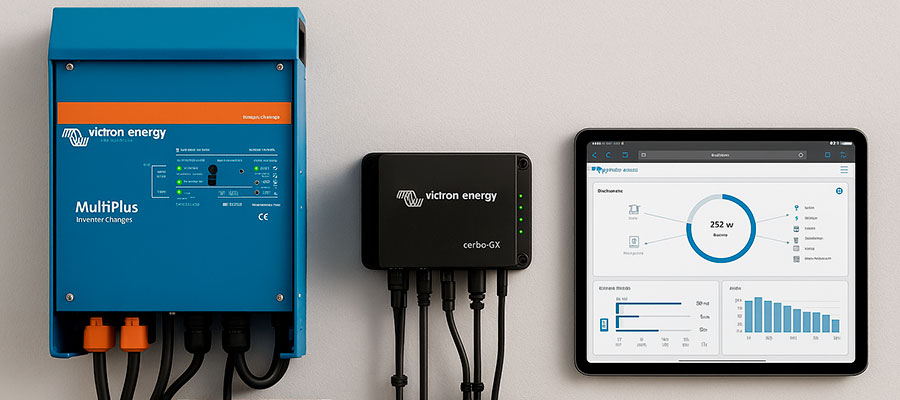
To program your Victron, you must understand how its systems communicate. Most settings transfer through the ve.bus communication port. The mk3 usb link or bluetooth dongle helps you reach hidden options. Many users manage their inverter charger setup using the victron connect app. A gx device like the cerbo gx allows real-time data access. You can monitor power flow and change settings anytime. Victron software also helps fine-tune voltage and charge current. Learning the basics makes every config faster and safer for your setup.

What is Victron Energy programming
Victron Energy programming lets users customize how their system performs. It links multiplus ii, quattro, and controllers through the ve.bus port. You can adjust inverter settings and control charge current safely. Many use victronconnect or veconfigure to manage parameters.
The key point is that you can program your Victron without a USB interface.
A bluetooth dongle or ve.bus smart dongle allows wireless setup. The cerbo gx or raspberry pi helps monitor power data remotely. Firmware updates keep everything reliable and efficient. Each config ensures balanced operation for all victron products.
Overview of Victron devices: Multiplus, Quattro, MPPT
| Device | Description | Key Features | Use Case |
|---|---|---|---|
| Multiplus | Combines inverter and charger functions for stable off-grid power. | Auto source switching, compact design, pure sine output. | Homes, campers, backup systems. |
| Quattro | Handles two AC inputs for complex or high-demand setups. | Dual input, load sharing, scalable power. | Marine, hybrid, industrial systems. |
| MPPT Controller | Maximizes solar charging efficiency with smart tracking. | Fast MPPT response, broad battery support, remote control. | Solar systems in homes or remote sites. |
Why configuration matters for Victron systems
Proper config ensures each victron inverter performs at its best. It protects lithium batteries from overcharge or deep discharge. Tools like victron vrm or victronconnect app help track usage trends. Adjusting charge current improves battery lifespan and reliability. Updated firmware keeps your setup ready for any shore power conditions.
Benefits of correct configuration:
- Longer battery bank life and stable performance
- Smooth operation even when connected to shore power
- Easy remote control via bluetooth dongle or gx device
- Accurate data logs with victron vrm and raspberry pi
USB Cable Programming for Victron systems
Programming through a usb port is still the most direct method. It links your inverter charger to setup tools like veconfig. Many diy solar users choose this for reliability and speed. The mk3-usb interface connects your computer and the victron ve.bus network. Using this wired link ensures steady data transfer and full control. It also lets you read the battery monitor with precision. Updates and changes travel smoothly via ve.bus lines. This process keeps your battery type and system behavior correctly aligned.
Role of the MK3-USB adapter in Victron configuration
The mk3-usb interface acts as a translator between hardware and software. It joins the rj45 cable to the computer’s usb port safely. Through this adapter, tools like veconfig can access every function. Users can review current draw, inverter data, and system limits quickly.
The key advantage is reliable communication through the mk3-usb adapter.
It reduces connection errors and keeps your setup stable under load. Many diy solar owners depend on it for home installations. It works with multiplus or quattro models and other controllers. The adapter also helps synchronize bms and battery monitor systems. By ensuring consistent transfer via ve.bus, it simplifies the entire setup process.
How Victron multiplus and multiplus-ii use USB programming
Both multiplus or quattro models support direct setup through the usb port. The mk3-usb interface allows full access to all inverter parameters. With it, users can modify operation limits and safety thresholds. The connection transfers every setting securely via ve.bus communication. A high-quality rj45 cable improves stability during configuration. Each change affects how bms and battery monitor interact. The process also adapts to different battery type profiles. Multi control panels can then read and manage real-time power data. Many diy solar enthusiasts use this to maintain 120v systems safely.
Limitations without a USB connector
Working without a usb port makes setup slower and less direct. Some veconfig tools may not recognize hardware correctly. Monitoring current draw or bms data becomes more complex. The system may not detect the correct battery type automatically. Updates transferred via ve.bus might require extra time to apply.
Main drawbacks:
- Reduced accuracy during configuration
- Slower data exchange through rj45 cable
- Limited monitoring of battery monitor readings
- Harder control for multi control panels
Alternatives to USB Cable Programming
Modern systems allow programming without any wired connections. Many users now rely on network-based or mobile solutions. A ve.direct link can handle most inverter and controller tasks. Systems connected to mppt solar setups also benefit from this flexibility. Remote platforms help monitor performance and update settings easily. Using online tools saves time, especially for large installations. These options reduce the need for constant physical access. For many setups, wireless or cloud control feels faster and more reliable.
Configuring Victron devices via VRM portal
The VRM portal gives full control from any web browser. It lets users adjust settings and view system statistics in real time. Data from ve.direct or mppt solar components appears instantly. You can track performance and optimize power output remotely. It’s a convenient method for users managing off-grid systems.
Key benefits:
- Remote access from anywhere
- Live data and event logs
- Simple updates through the dashboard
- Full control over energy parameters
Using Victron adapters for configuration
Physical connection tools still play an important role in setup. They help bridge the gap between hardware and software. Many systems support simple plug-in accessories for control. These connectors often link through ve.direct communication lines.
The main advantage is fast and stable access to critical parameters.
They allow users to modify inverter functions or controller modes safely. For mppt solar systems, this ensures better charging accuracy. In field setups, portable connectors simplify on-site configuration. Even without a full network, direct linking keeps control efficient. Consistent connections mean smoother updates and fewer synchronization issues.
Mobile and remote programming options
Smartphones now make remote control easier than ever. Dedicated apps connect to systems using ve.direct communication. Through these tools, users can adjust or monitor settings quickly. Mppt solar systems also sync seamlessly with mobile platforms. Remote access keeps everything visible and easy to maintain.
Advantages of mobile control:
- Quick changes from any location
- Automatic data sync and updates
- Easy integration with cloud services
- Real-time tracking of performance metrics
Programming Victron Multiplus and Quattro Without USB
Programming these inverters without a physical connection is entirely possible today. Users can rely on remote or wireless tools instead of cables. Cloud platforms provide access to settings from anywhere in the world. The Multiplus and similar models support advanced remote adjustments. These systems can update parameters through network-linked controllers. Mobile applications now offer reliable alternatives for full setup control. Data changes synchronize automatically after each update. This flexibility makes off-site management easier for both users and installers.
Steps to configure without the MK3-USB
You can manage settings using software connected through the network. Local devices with internet access can sync system parameters easily. Setup tools detect compatible hardware automatically after login. A mobile dashboard can also access essential features securely. Follow these steps for a successful configuration:
Quick steps:
- Connect your inverter system to the online portal
- Log in through a verified remote account
- Open configuration tools inside the dashboard
- Apply parameter updates and save changes
- Verify all readings before closing the session
Possible challenges when bypassing USB connection
Working without a physical link sometimes limits direct access. Remote connections depend on stable network performance and permissions. Not all systems support full feature control online. Some functions may sync slower or require manual confirmation. Monitoring details might also vary based on device generation.
Common challenges:
- Temporary delays during setting updates
- Limited access to advanced calibration tools
- Network instability causing incomplete uploads
- Extra steps needed for local troubleshooting
Recommended solutions from Victron Energy
The manufacturer offers practical options for those avoiding wired programming. Their remote platforms make management easier and safer. A cloud service stores all key parameters and usage data.
The best solution is using the online VRM environment for full control.
This system ensures instant synchronization between local units and the portal. Mobile tools allow on-site configuration using existing connections. Regular software updates keep compatibility with new firmware releases. Technical documentation also explains troubleshooting for different inverter types. Users gain flexibility while maintaining the same reliability. Each method ensures safe operation and simplified long-term maintenance.
Safety and Configuration Settings
Proper safety measures are essential when adjusting any power system. Always verify connections before making adjustments to prevent hazards. Each system has predefined limits for safe operation. Monitoring tools help track current and voltage in real time. Mismanagement can lead to overheating or permanent damage. Correct settings protect both batteries and load devices. Users should follow manufacturer guidance carefully to avoid mistakes. Safety first ensures long-term system stability and efficiency.
Setting current limit and input current safely
Adjusting current must be done gradually to prevent overloads. High input values can damage equipment or reduce lifespan. Use monitoring tools to confirm the system remains stable. Check all connections before increasing current limits.
Steps for safe adjustment:
- Reduce load before changing input current
- Apply new limits gradually
- Monitor system for abnormal behavior
- Record settings for future reference
- Confirm stability after each change
Configuring lifepo4 and 12V systems
Lithium-based systems require careful attention to voltage limits. 12V lead-acid setups have different tolerance ranges. Monitoring tools help track system parameters continuously. Always follow recommended voltage schedules for each battery type.
Configuration tips:
- Set correct voltage limits for safety
- Adjust settings based on battery chemistry
- Monitor for unusual voltage fluctuations
- Ensure load devices operate within limits
- Document all changes for maintenance
Importance of correct voltage and charger settings
Voltage and charger settings directly impact battery health and performance. Improper values can shorten battery lifespan significantly. Overvoltage may cause overheating or chemical imbalance. Undervoltage may prevent full energy storage.
Correct settings ensure reliable operation and safe energy management.
Monitoring tools help verify stability during charging cycles. Always check limits before making adjustments. Consistent observation reduces the risk of damage. Following proper settings guidelines increases system efficiency and reliability.
Troubleshooting Victron Configuration Without USB
Troubleshooting without a direct connection requires careful observation. Start by reviewing all system settings for accuracy. Check voltage, current, and system stability regularly. Many errors occur due to network or wireless delays. Updating firmware can resolve unexpected behavior or errors. Always document changes to track adjustments over time. Using monitoring tools helps identify abnormal readings quickly. Following safety guidelines ensures troubleshooting remains safe and effective.
Common issues when programming without a cable
Remote or wireless setup can sometimes cause synchronization delays. Some system parameters may not update immediately. Network interruptions may prevent proper monitoring of all devices. User errors in entering values are common.
The most frequent problem is inconsistent parameter updates during remote access.
Limited access to advanced functions can frustrate new users. Tools may misreport current draw or operational limits. Environmental interference can reduce connection stability. Careful checks are essential to ensure system reliability.
How to verify configuration changes
Always confirm that updated settings reflect on the system. Use monitoring tools to check voltage and current behavior. Test all functions to ensure proper operation. Review logs for unexpected events after changes.
Steps to verify:
- Compare previous and current system readings
- Confirm energy flow and load balance
- Observe stability over several cycles
- Check alerts or warnings in the dashboard
- Repeat verification if any discrepancies appear
When to contact Victron support
Reach out when troubleshooting cannot resolve issues safely. Persistent errors or unstable readings require expert guidance. Complex system setups may need professional intervention. Always provide detailed information for faster assistance. Follow recommended procedures for reporting and diagnostics.
Support tips:
- Record all recent changes before calling
- Note system readings and error messages
- Explain steps already attempted
- Keep device firmware information handy
- Follow support advice carefully for safety